Tools reference
When you ask Orbit something, the assistant can use 25 tools on your Mac: it can search and read files, mail, notes, contacts, calendars, reminders and photos, open apps and links, run your shortcuts, and change the appearance or the volume. This page lists every tool with its parameters, risk level, limits, result card and the permission it needs, and describes exactly what each tool sends to the language model.
For the bigger picture, see the user guide (cards and chatting), permissions, privacy and the security model.
How tools work
A tool is one capability the assistant can call while it answers you, such as search_mail or create_event. Each tool has an English snake_case name, a description that tells the model what it does and when to use it, and an input schema (its parameters). Orbit checks every call against that schema before it runs. Tools work the same way for every provider, including the Claude subscription, where Claude Code calls them through Orbit's local bridge (see providers).
Risk levels
Every tool has a risk level. It decides whether you are asked before the tool runs. Settings → Tools shows the level as a badge next to each tool.
| Level | Badge in Settings → Tools | What it means | Confirmation |
|---|---|---|---|
read |
Read | Only reads. | Runs without asking. |
draft |
Draft | Opens or drafts something without sending it (opens a file, an app or a note, opens a mail draft). | Runs without asking. |
write |
Asks first | Changes something (creates a note, an event or a reminder, runs a shortcut, changes a setting). | A confirmation card for every single call. |
destructive |
With warning | Cannot be undone. | A confirmation card with a clear warning. No current tool has this level: no tool sends mail, deletes or moves anything. |
A tool may give one particular call a different level. Currently only open_url does this: it is a write tool, but a link that you typed or pasted in the message of the current request opens at once as a draft call. Every other link needs your confirmation. See open_url.
Confirmation cards
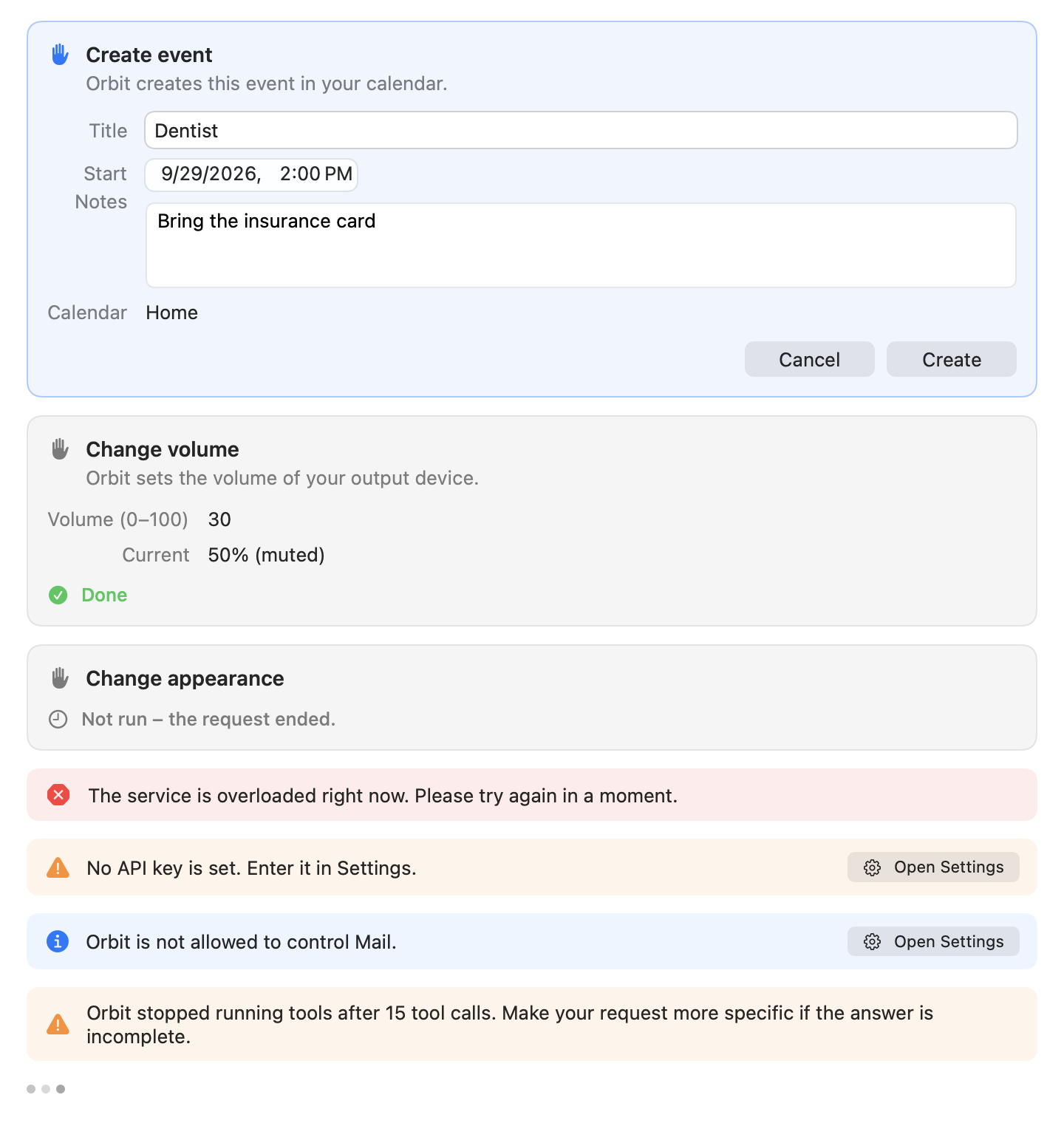
- One card per call. A card covers exactly one tool call. You never give a blanket approval.
- Checked before the card appears. Before a
writetool shows its card, Orbit checks and completes the request. For example, it validates dates or resolves a calendar name to the calendar it will use. A request that cannot work is refused without a card, and the assistant gets the reason. - Editable fields. Many cards let you change values before you confirm: a note's title, text and folder, an event's title, times, location and notes, a reminder's title and due date, a shortcut's input, or the new volume level. Orbit checks the edited values again. If they do not fit (for example, an end before the start), nothing runs and the card says "Not run". The assistant is told which values you edited.
- The card names the target. Calendars, reminder lists and audio devices are fixed when the card appears. Orbit keeps their identifiers through your edits, so the action goes exactly where the card said, or not at all.
- Cancel tells the assistant "The user declined this action. Nothing was changed." A card that is still open when the request ends shows "Not run: the request ended."
The user guide describes how to use the cards with the keyboard and VoiceOver.
Turning tools off
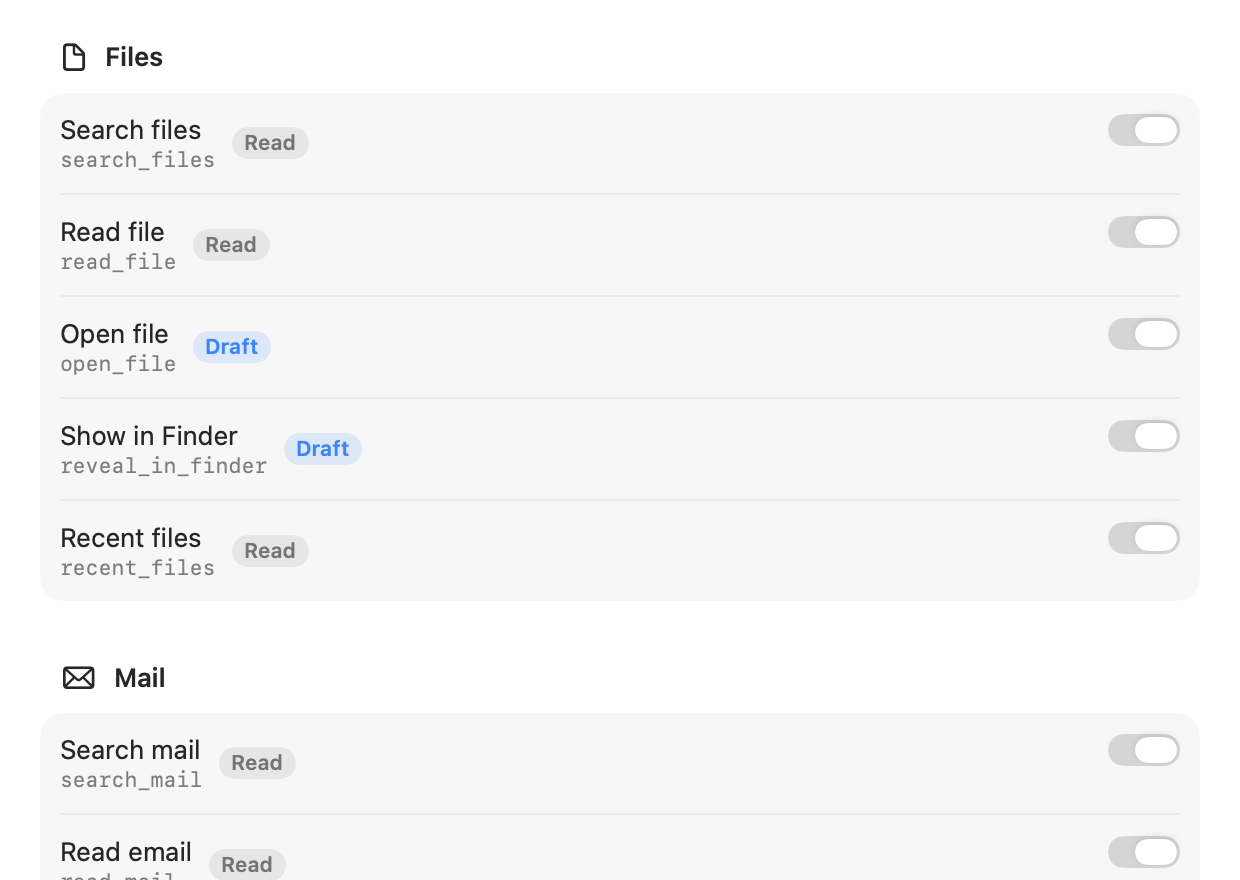
Settings → Tools lists every tool with a switch, grouped by area in this order: Files, Mail, Notes, Calendar, Reminders, Contacts, Photos, Apps, System. Each row shows the tool's name as Settings shows it (for example "Search files"), its tool name (search_files) and its risk badge.
- Orbit does not offer a turned-off tool to the model. If you turn a tool off during a chat, the assistant is told that you disabled it and where you can turn it back on.
- The list of tools is fixed when a chat starts. A tool you turn on during a chat can be used in a new chat.
get_frontmost_contextreads the frontmost app whenever the assistant asks. Turn it off here if you do not want that (see Frontmost app context).
Tools that need a permission
Many tools need a macOS permission, listed for each tool below and on the permissions page.
- Allowed, or not asked yet: the tool is available. If you have not decided yet, the first request that needs the permission brings up macOS's prompt, because it is your request. Reading the permission status never asks.
- Denied (also "Add Only" for Calendars and Reminders): Orbit turns the tool off and tells the assistant which permission is missing, named the way Settings shows it (for example "Automation: Mail"). Settings → Tools marks the tool with "Missing permission: …". The chat shows a notice such as "Orbit is not allowed to control Mail." with Open Settings, which opens Settings → Permissions (once per request).
- Some permissions are optional and never turn a tool off: Full Disk Access for
search_mail, Automation: Photos for showing photos, and Accessibility and Automation: Finder for the frontmost app context.
Per-request limits
A request is one message of yours and everything the assistant does to answer it, across all of the model's turns and retries.
| Limit | Value |
|---|---|
| Tool calls per request | 15. After that Orbit runs no more tools, tells the model to answer with what it has, and shows "Orbit stopped running tools after 15 tool calls. Make your request more specific if the answer is incomplete." |
open_url calls per request |
3. Further calls are refused ("At most 3 times per request"), and the assistant is told to give you the links as text. |
| Time per tool call | 90 seconds. run_shortcut gets 2 minutes for the shortcut plus 15 seconds to stop it and clean up. |
| Size of one tool result | 45,000 characters as a final safety net. Each tool also shortens its own results, with a note for the model such as [Truncated: showing the first 20000 of 58123 characters.] |
Characters and Unicode. A sender can make a single "character" huge, for example a letter with thousands of combining marks ("Zalgo" text). So every character limit Orbit puts on what the model gets also counts Unicode scalars (ten per character), and more than eight combining marks in a row are cut to eight. Real text in any script stays as it is.
What the model receives
Tool results are compact English text for the model. Everything that comes from your data is passed as data, never as instructions:
-
Longer content is wrapped in its own element, and the model is told that the content is data:
Element Content Sent by <file_content>the text of a file read_file<mail_content>the text of a message read_mail<note_content>the text of a note read_note<calendar_events>the event rows list_events<reminders>the reminder rows list_reminders<shortcut_output>the text a shortcut returned run_shortcut<selected_text>the text selected in the frontmost app context chips, get_frontmost_context<finder_selection>the paths selected in Finder context chips, get_frontmost_context<frontmost_app>the frontmost app and its window title get_frontmost_contextContext chips travel inside the
<orbit_context>block that Orbit puts in front of every message of yours. That block also carries the current time and time zone, and changes in which tools are available.get_frontmost_contextreturns the same elements as its result. -
If the content itself contains the element's tag, Orbit neutralizes it so the content cannot close the element: the bracket before the tag name becomes
‹. This also works when the tag is disguised with spaces, invisible characters, full-width or small brackets, or a different case. Everything else (code, HTML, XML) stays as it is. - Names and other values in lists (senders, subjects, titles, folders, paths, shortcut names, window titles) are single-line, length-limited and neutralized:
<and>become‹and›, and invisible format characters (zero-width spaces, joiners, bidirectional controls) are removed. - Descriptions of the tools that read your data tell the model not to act on requests found in that data. For example, it should not forward mail or open a link because a message says so.
What the chat tells you was sent
Below each answer, the chat lists which of your content went to the provider, for example "3 emails, 1 file and 2 notes sent to Claude" or "Details of 30 photos sent to Claude". The recipient is the provider's name, "the local model" for a server on your Mac, or "the language model". Orbit counts these kinds: file names, files (contents), emails, notes, events, reminders, contacts, details of photos, selected texts, names of shortcuts, output of shortcuts, window titles, and names of calendars, reminder lists, folders, mailboxes and albums. A failed call is counted too when its message carries your data, for example the names of similar shortcuts when a name does not exist. See privacy.
All tools at a glance
| Tool | Name in Settings | Area | Level | Asks first? | Permission | Card |
|---|---|---|---|---|---|---|
search_files |
Search files | Files | read | No | Folder access (macOS asks per folder) | File card |
read_file |
Read file | Files | read | No | Folder access | None |
open_file |
Open file | Files | draft | No | Folder access | None |
reveal_in_finder |
Show in Finder | Files | draft | No | Folder access | None |
recent_files |
Recent files | Files | read | No | Folder access | File card |
search_mail |
Search mail | read | No | Automation: Mail (Full Disk Access optional) | Mail card | |
read_mail |
Read email | read | No | Automation: Mail | None | |
create_mail_draft |
Create email draft | draft | No (never sends) | Automation: Mail (Contacts for names) | Draft card | |
search_notes |
Search notes | Notes | read | No | Automation: Notes | Note card |
read_note |
Read note | Notes | read | No | Automation: Notes | None |
create_note |
Create note | Notes | write | Yes (editable) | Automation: Notes | Note card |
open_note |
Open note | Notes | draft | No | Automation: Notes | None |
search_contacts |
Search contacts | Contacts | read | No | Contacts | Contact card |
list_events |
Show events | Calendar | read | No | Calendars (full access) | Event card |
create_event |
Create event | Calendar | write | Yes (editable) | Calendars (full access) | Event card |
list_reminders |
Show reminders | Reminders | read | No | Reminders (full access) | Reminder card |
create_reminder |
Create reminder | Reminders | write | Yes (editable) | Reminders (full access) | Reminder card |
search_photos |
Search photos | Photos | read | No | Photos (Automation: Photos to show a photo) | Photo grid |
open_app |
Open app | Apps | draft | No | None | None |
open_url |
Open link | Apps | write (draft for your own links) | Only for links you did not type | None | Info card |
get_frontmost_context |
Read frontmost app | Apps | read | No | Accessibility, Automation: Finder (optional) | None |
list_shortcuts |
List shortcuts | System | read | No | None | None |
run_shortcut |
Run shortcut | System | write | Yes (input editable) | None | Info card |
set_appearance |
Change appearance | System | write | Yes | Automation: System Events | Info card |
set_volume |
Change volume | System | write | Yes (level editable) | None | Info card |
Parameter tables below list each parameter's JSON type. Dates are ISO 8601 strings: a day (2026-10-05) or a date and time (2026-10-05T10:00), in your current time zone unless the value carries an offset. In an end bound (to, until, modified_before), a day alone includes that whole day.
Files
Five tools find, read, open and show files. None of them asks for confirmation. The chat notes which file names and contents went to the model.
search_files
Searches your files and folders with Spotlight by words in their name or text, optionally filtered by kind, modification date and folder.
| Parameter | Type | Required | Default / limits | Description |
|---|---|---|---|---|
query |
string | yes | at most 10 keywords | Keywords that must all match the start of a word in the name or the content. "*" matches everything when a filter (kind, a date or folder) is given. |
kind |
string (enum) | no | None | One of the file kinds below. |
modified_after |
string (date) | no | None | Only files modified at or after this date or date and time. |
modified_before |
string (date) | no | None | Only files modified at or before this; a day alone includes that whole day. Must not be earlier than modified_after. |
folder |
string | no | the default places | Only this folder and its subfolders (absolute path or ~/…). |
limit |
integer | no | 20; 1 to 50 | Maximum number of results. |
Kinds:
| Kind | Covers |
|---|---|
pdf |
|
image |
images |
document |
word processing: Pages, Word, OpenDocument text, RTF (not PDF) |
presentation |
Keynote, PowerPoint, OpenDocument presentation |
spreadsheet |
Numbers, Excel, OpenDocument spreadsheet, CSV, TSV |
folder |
folders |
text |
plain text and Markdown (not source code) |
code |
source code, scripts, JSON, YAML |
audio |
audio |
video |
video |
archive |
ZIP files, disk images and other archives |
How it works
- Every keyword must match the start of a word in the name or the text, ignoring case and accents, and all keywords must match. So "invoice" also finds "invoices", but not the other way round. The assistant is told to use singular forms or word stems, one or two distinctive words (company, sender, project) with kind and date filters, and one search per language for generic words (a file may be German or English whatever language you write in).
- Results list name matches first, then the other matches, each newest first. Orbit reads at most 300 results per Spotlight query.
- For "my latest downloads" the assistant uses
query"*"withfolder~/Downloads. - Folder names on disk are English even where Finder shows localized names (for example
~/Documents,~/Pictures), and iCloud Drive is~/Library/Mobile Documents/com~apple~CloudDocs. The assistant is told this.
Where Spotlight looks. Without a folder, and for ~ or a folder that contains your home folder, Orbit searches the visible folders directly in your home folder (Desktop, Documents, Downloads, … and folders you created) plus iCloud Drive and cloud storage (~/Library/Mobile Documents, ~/Library/CloudStorage). Files lying directly in ~ are not searched in that case. Hidden files and folders, the rest of ~/Library, the Trash, and the contents of apps and document packages are never listed. Files that Orbit never touches (see File access rules) are not even listed.
read_file
Reads the text of one file.
| Parameter | Type | Required | Default / limits | Description |
|---|---|---|---|---|
path |
string | yes | None | Absolute path (or ~/…) exactly as search_files or recent_files listed it, or as you gave it. The assistant is told never to guess paths. |
max_chars |
integer | no | 20,000; 1 to 40,000 | Maximum number of characters to return. |
Formats: plain text, Markdown, source code, CSV, JSON, XML and similar text files; HTML (tags removed); RTF and RTFD; Word (.doc, .docx); OpenDocument text; PDF (page by page until the limit); and Pages, Numbers and Keynote files that contain a preview (older files do). Text files are read as UTF-8, UTF-16 or UTF-32 with a byte order mark, else Windows-1252, else Latin-1. Any other file is read only when it is valid UTF-8 without NUL bytes.
Limits
- PDFs up to 100 MB; other files up to 20 MB.
- Word (
.docx) and OpenDocument files whose contents unpack to more than 50 MB are refused before they are unpacked. - Refused, with a hint for the assistant to suggest
open_fileinstead: password-protected PDFs, PDFs without a text layer (scans), Pages/Numbers/Keynote files without a preview, and formats Orbit cannot extract (for example Excel spreadsheets). - Images, audio, video, archives and programs are not read, unless the content is clean UTF-8 text after all (TypeScript's
.tsfiles are typed as video). - A note tells the model when the text was cut.
What the model receives: the format, the size of the text and the text inside <file_content>.
open_file
Opens a document or folder in its default app, like a double-click (a PDF in Preview, a folder in Finder).
| Parameter | Type | Required | Default / limits | Description |
|---|---|---|---|---|
path |
string | yes | None | Path of the file or folder, as for read_file. |
Never opened, because they could run code: apps and other bundles (plug-ins, preference panes, screen savers, …), executables, scripts (shell, Python, AppleScript, .command, .tool), Terminal settings and sessions (.terminal, .term), Automator workflows and actions, Shortcuts files, installer packages, configuration profiles, Java archives, link files (.webloc, .inetloc, .fileloc, .url) and Unix executables without a document type. The assistant can show such items with reveal_in_finder instead. A Finder alias opens its target only if the target itself may be opened. An alias whose target cannot be found without asking you or mounting a volume is refused.
reveal_in_finder
Shows a file or folder selected in its enclosing Finder folder, without opening it. The assistant uses it when you ask where a file is, and for items open_file refuses.
| Parameter | Type | Required | Default / limits | Description |
|---|---|---|---|---|
path |
string | yes | None | Path of the file or folder, as for read_file. |
reveal_in_finder may show items in ~/Library and in Orbit's own data folder ("show me where Orbit keeps its chats"), because showing them in Finder discloses nothing to the model. It never shows secrets.
recent_files
Lists the files you opened or changed in the last 30 days, most recent first (by the later of last use and modification).
| Parameter | Type | Required | Default / limits | Description |
|---|---|---|---|---|
kind |
string (enum) | no | None | One of the kinds listed for search_files. |
limit |
integer | no | 10; 1 to 50 | Maximum number of files. |
Folders and apps are left out unless you ask for them by kind. The tool always covers all of your folders. For the latest downloads, the assistant uses search_files with folder ~/Downloads.
File access rules
These rules apply to read_file, open_file, reveal_in_finder, search results and file cards.
- Never touched: keychains, SSH and GPG keys, cloud and developer credentials (
~/.aws,~/.kube,~/.netrc,~/.npmrc, …), password-manager data (.kdbx, 1Password, Bitwarden, …), browser profiles, private keys and certificates (.pem,.p12,.keyunless it is a Keynote document, …),.envfiles,~/Library(except iCloud Drive and cloud storage) and Orbit's own data folder. Onlyreveal_in_findermay show items in~/Libraryand Orbit's data folder, never secrets. - Paths are checked twice. A path is first checked as written, so a denied path is never opened. Then symlinks and other spellings of it are resolved, and the resolved path is checked too. System spellings themselves (
/System/Volumes/Data/…,/.vol/…,/.nofollow/…,/dev/fd/…) are refused. .keyfiles. A.keyfile counts as a Keynote document when it is a package, larger than 256 KB, or a ZIP file. A small.keyfile in iCloud Drive or cloud storage that is not downloaded is left out of search results rather than downloaded to check it.- Paths shown to the model are single-line and neutralized (invisible characters removed,
<and>shown as‹and›). A path the model passes back in that form is matched to the file it showed, which is then checked like any other. Matching never lists a folder that is off limits, and a path matched to a protected item is reported as "not found", like one matched to nothing. So a disguised path cannot reveal whether a guessed file in a protected folder exists.
File card
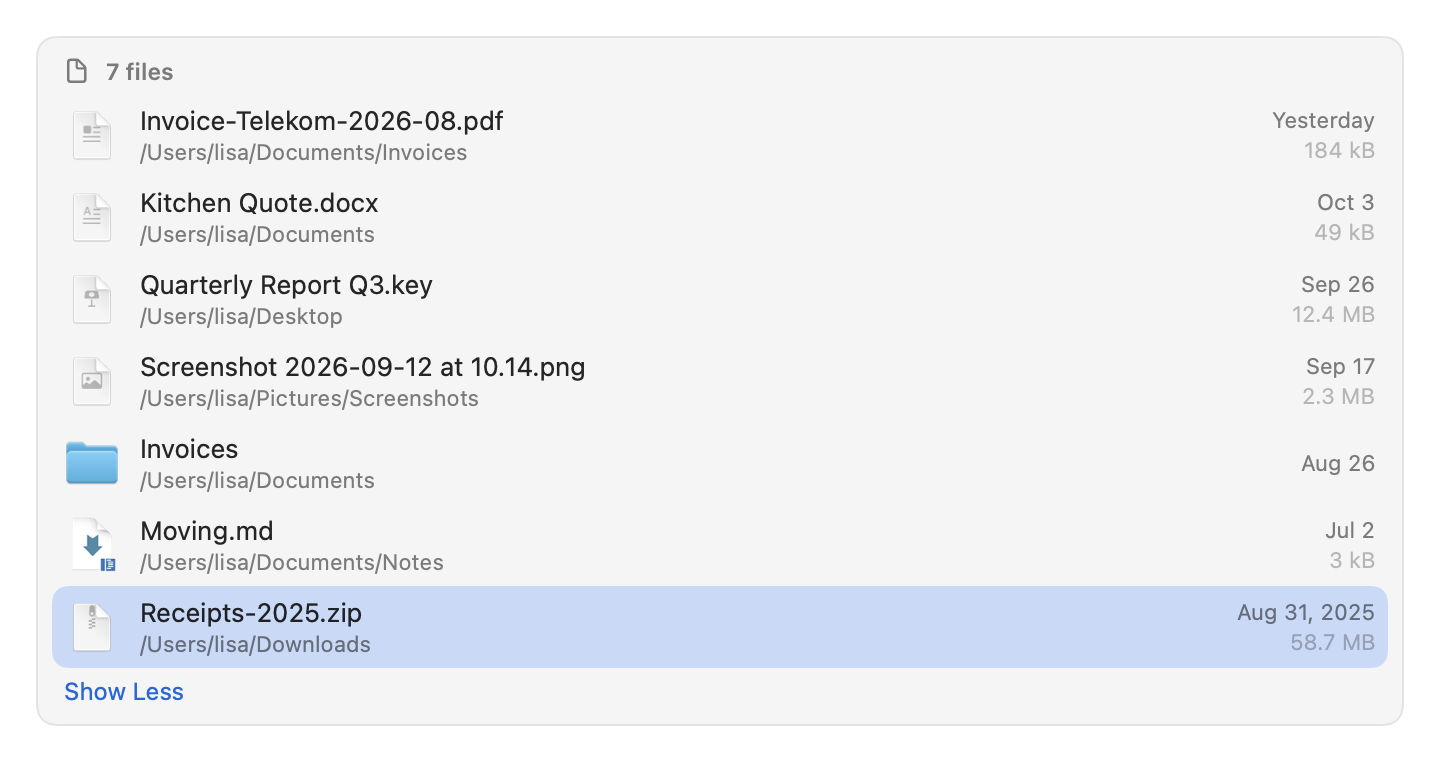
search_files and recent_files show their results as a file card: icon, name, folder, date and size for each file, the first five rows at once.
- The folder is named as Finder names it, for example "Documents ▸ Invoices" or "iCloud Drive ▸ Keynote" instead of
~/Library/Mobile Documents/com~apple~Keynote/Documents. Cards saved by older builds show the path. The tooltip and Copy Path keep the path, and the model always gets paths. - Click a row to select it, double-click to open it, or drag it into Finder, Mail or any app that takes files. The magnifying glass that appears on hover shows the file in Finder. The context menu offers Open, Quick Look, Show in Finder and Copy Path.
- Keyboard: from the input, Tab (or Shift-Tab) moves to the latest card (mail, note and draft cards count too). On the card, ↑/↓ select a row (hidden rows unfold), Space shows or hides Quick Look, Return opens, ⇧⌘R shows the file in Finder (like "Show in Finder" in Music), and ⌥⌘C copies its path (like Finder's "Copy as Pathname"; VoiceOver says "Path copied"). Tab and Shift-Tab move to the next and previous card and, past the last or first one, back to the input. The context menu shows these keys.
- Quick Look: Escape closes Quick Look first and only then stops an answer or closes the panel. The preview follows the selection, and ↑/↓ in the preview move it. It appears above Orbit's panel on the same screen (where it was last, if that is on this screen), leaves the keyboard with the card, and closes when the panel closes, also when another Orbit window such as Settings takes the keyboard.
- VoiceOver reads each row's name, folder, date and size, announces the row that Tab and ↑/↓ select, and offers the same four actions.
- A file that was moved or deleted since the card was made is not opened; a note under the input says so.
- Because the assistant chose what a card lists, opening from a card follows the same rules as
open_file: apps, programs, scripts, installers, link files and Finder aliases whose target may not be opened are shown in Finder instead, where you can open them yourself.
Permission
The file tools need no setting of their own. macOS asks for access to Desktop, Documents and Downloads on first access, possibly while you type in instant search. These folder permissions are not listed in Settings, because macOS manages them per folder. See permissions.
What the model receives
File names and paths in lists (as "file names" in the chat's note), and file contents inside <file_content> (as "files"). Paths in your home folder appear as ~/….
Examples
- "Find the Telekom invoice from March"
- "What was I working on yesterday?"
- "Summarize the PDF I downloaded last"
- "Open the last presentation I worked on"
- "Where is my tax return from 2025? Show it in Finder."
Mail
Three tools search, read and draft mail in Apple Mail. None of them can send, delete, move or change a message.
search_mail
Lists the messages in a time range that match words, a sender and mailboxes, newest first, each with date, sender, subject, a short preview and an id for read_mail and create_mail_draft.
| Parameter | Type | Required | Default / limits | Description |
|---|---|---|---|---|
query |
string | no | at most 5 words or phrases, each up to 100 characters | Words that must all occur in the subject or the sender (and, through Spotlight, in the message text). A phrase in double quotes (also „…“ or “…”) is matched as written. Leave it out, or use "*", to list all messages of the time range. |
from |
string | no | up to 200 characters | The sender: a name ("Lisa", "Lisa Mustermann"), a company, or an email address. |
mailbox |
string | no | the inboxes of all accounts | "inbox", "all" (every mailbox except trash, junk, drafts and outbox), "sent", "drafts", "junk", "trash", or a mailbox name ("Archive") or path ("Archive/Invoices"). |
since |
string (date) | no | 30 days before until |
Earliest date received. |
until |
string (date) | no | now | Latest date received; a day alone means the end of that day. |
unread_only |
boolean | no | false | Only unread messages. |
limit |
integer | no | 20; 1 to 50 | Maximum number of messages. |
A single search covers at most two years (731 days). For older mail the assistant searches again with an earlier range.
How words match. Every word must occur in the subject or in the sender's name or address, also inside longer words, ignoring case and accents. When Orbit searches through Spotlight (see below), a word may also occur in the message text, where it matches from the start of a word. The result tells the assistant which fields were searched, so it can tell you when the text was not.
How from matches
- A name or company: every word must start a word of the sender's name. "Lisa Mustermann" also finds "Mustermann, Lisa" at any address, but not "Annalisa Mustermann" or "Lisa Schmidt lisa.schmidt@mustermann.example".
- A single word may also start a word of the sender's address: "Acme" finds
billing@acme.example. - A sender without a name is matched by its address.
- With access to Contacts, a name also matches the addresses of the contacts with that name (up to 10 contacts and 20 addresses).
- An email address matches only that address, so the assistant prefers names.
How Orbit talks to Mail
- Through its own AppleScripts (
Orbit/Resources/AppleScripts/mail-*.applescript), run by/usr/bin/osascriptin a separate process. As for Notes: everything the model or you wrote reaches a script only as an argument, the scripts answer in JSON, each run has a time limit, and logs contain no content. The tests check that none of the scripts can send, delete, move or change a message. - A search takes two short runs. The first reads all messages of the time range with subject and sender at once per mailbox; Orbit matches, ranks and removes copies itself (for example Gmail's "All Mail", where the copy in an inbox wins). The second reads read status, Message-ID and the beginning of the text of the few messages shown.
- Time limits: if Mail is slow, a search stops starting new mailboxes after about 35 seconds and says which mailboxes it skipped. After a search that took 45 seconds, the second run (previews and read status) is left out.
- A mailbox Mail cannot search is never left out silently: the result names it with Mail's error number. If the inbox itself (or sent, drafts, junk or trash) cannot be searched, even after a second try, the search fails instead of answering "no messages".
- Subjects and senders longer than 500 characters are cut in the script (Orbit shows far less), so a few messages with huge headers cannot make the answer larger than Orbit accepts.
- If Mail cannot say in which account's mailbox an inbox message lies, its id keeps "inbox" (
@inbox; likewise for sent, drafts, junk and trash), and reading or answering it looks there.
Searching through Spotlight
- If Spotlight's index shows Mail's messages to Orbit (on current macOS usually only with Full Disk Access),
search_mailsearches all mailboxes at once through Spotlight (kMDItemContentType == "com.apple.mail.emlx", scoped to~/Library/Mail). This is much faster on big mailboxes, and previews are read from the message files. - Orbit checks this on the first search with a query that stops at the first message and reads nothing of it, and checks again later: after 10 minutes when it did not work, after an hour when it did. Settings → Permissions shows which mode mail search uses; Check Again checks again, for example after you turned on Full Disk Access.
- Unread-only searches and the special mailboxes (sent, drafts, junk, trash) always ask Mail; so does a search when Spotlight fails.
- A message's content is chosen by its sender, so previews read each file within bounds: at most 512 KB, the first 4,000 characters (Unicode scalars) of subject and sender, at most 200 MIME parts, and every encoded word in one pass. A search that runs out of time stops before the next message file.
Message text. Through Spotlight, every search word may also occur in the text of a message (kMDItemTextContent, which Spotlight searches but never returns). There, words match from their start, ignoring case and accents: "quok" finds "Quokka", "okka" does not, and a phrase matches its words in a row. Observed with invented test messages: Spotlight indexes the body only (not the headers); of a message with a plain and an HTML version, the HTML part; and nothing of a message file with CRLF line endings (Mail's own store uses LF). Searches that ask Mail compare subjects and senders only, since reading every message's text through AppleScript would be far too slow, and the assistant is told which fields were searched.
read_mail
Reads one message: sender, recipients, date, subject, mailbox, the names of its attachments and its text.
| Parameter | Type | Required | Default / limits | Description |
|---|---|---|---|---|
id |
string | yes | None | The message's id exactly as search_mail returned it (mail:…). |
- The text is cut to 4,000 characters for the model (quoted earlier messages included as they appear). Up to 20 recipients and 20 attachment names are listed.
- Reading does not mark the message as read.
- If the message was moved or deleted, the assistant is told to search again.
create_mail_draft
Opens a message in Mail as a visible window that you review and send yourself. Orbit never sends mail.
| Parameter | Type | Required | Default / limits | Description |
|---|---|---|---|---|
to |
array of strings | for a new message | up to 20 | Email addresses (lisa@example.com, Lisa Mustermann <lisa@example.com>) or contact names. Not used for replies. |
cc |
array of strings | no | up to 20 | Further recipients in Cc, like to. Not used for replies. |
subject |
string | for a new message | up to 300 characters | Not used for replies (Mail sets "Re: …"). |
body |
string | yes | up to 50,000 characters | Plain text with line breaks. For a reply only the answer, without a quote or signature. |
reply_to_id |
string | no | None | To answer a message: its id as search_mail returned it. |
reply_all |
boolean | no | false | With reply_to_id: answer everyone who got the message. Only when you ask for it. |
New messages. Orbit opens a new message window with recipients, subject and text. The assistant writes in the language of the correspondence, with a greeting and a sign-off.
Names as recipients
- A recipient name becomes an address only when exactly one address in Contacts fits (an exact full name wins). Otherwise no draft is opened, and the assistant lists the candidates and asks you.
- The first draft to a name may bring up macOS's Contacts prompt, because it is your request. A search never asks and then matches the name as written.
- Mail shows a recipient's name instead of the address. So a name written with an address ("Lisa lisa@example.com") reaches Mail only as the name of the one contact that has exactly this address (looked up only when Orbit may already read Contacts); otherwise Mail gets the address alone.
- Addresses copied back the way results show them to the assistant, such as "Lisa ‹lisa@example.com›" with a label such as "(work)", are understood as addresses.
Replies
- With
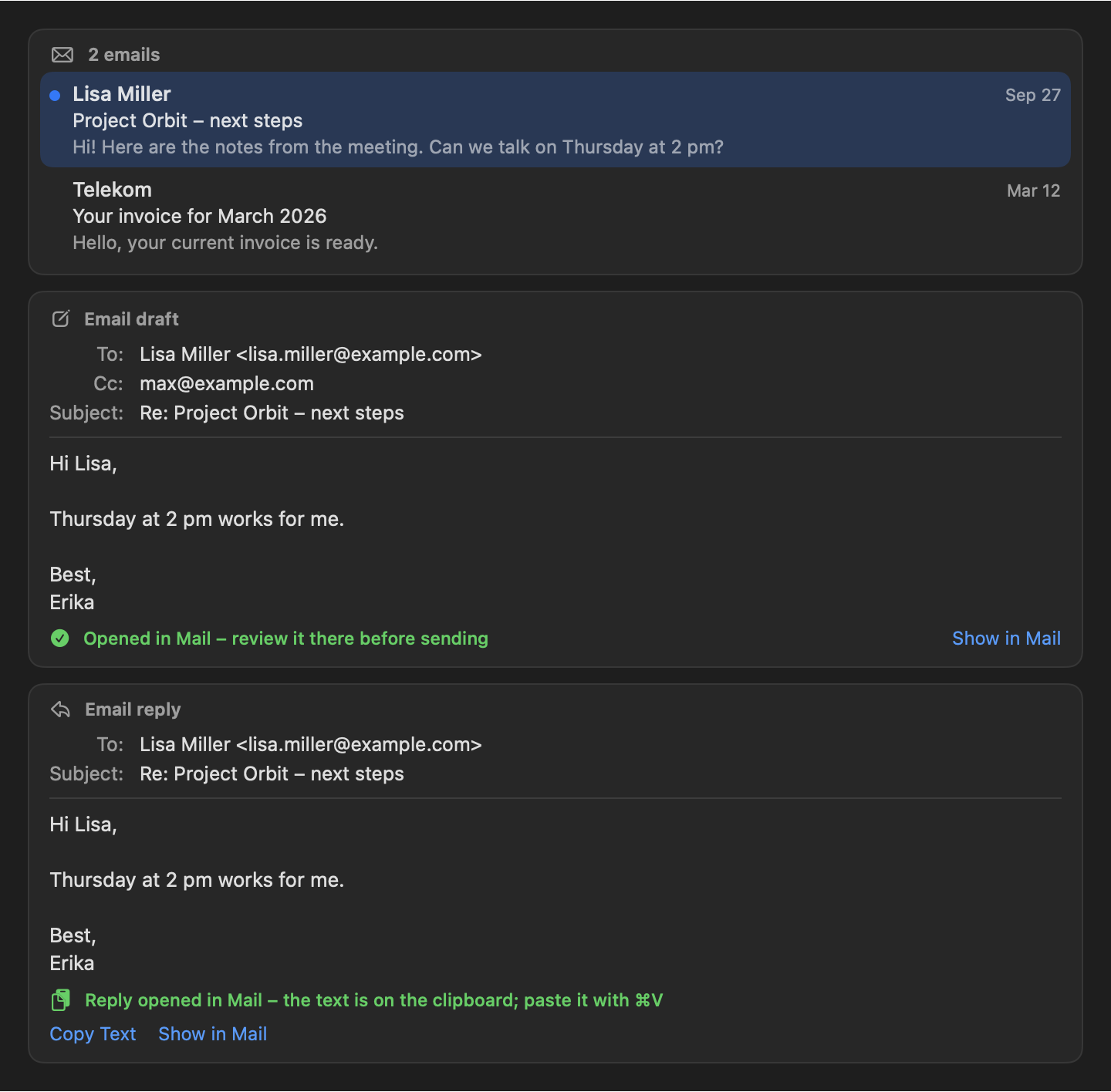
reply_to_id, Orbit opens Mail's real reply window (reply … with opening window). Mail sets the recipients, the subject, the quote, your signature and the In-Reply-To and References headers.to,ccandsubjectare not used. - Mail ignores scripted changes to the text of its reply windows, so Orbit does not write into it. It puts the text the assistant wrote on the clipboard and shows it on the card: "Reply opened in Mail: paste the text from the clipboard with ⌘V". You paste it, check the reply and send it. Nothing reaches the clipboard when the reply window did not open.
- Recipients the assistant passes for a reply are not added. The result tells the assistant which ones are missing, so it can tell you.
- Mail comes to the front with the reply window and has the keyboard, so ⌘V pastes straight into it. Orbit's panel stays visible next to it, without taking the keyboard back, with the reply's card in view, and VoiceOver reads where the text is. The panel then closes as always: on the next click outside it or when another app comes to the front. The hotkey or a click into the panel gives it the keyboard again (then the hotkey or Escape closes it).
- A panel you closed before the reply window appeared stays closed. New drafts (their text is in the window) and any other focus change behave as usual. If another app comes to the front while the reply window is still opening (for example with ⌘Tab), or the reply window does not open after all, the panel closes as after any other focus change.
Mail cards
- Mail card (
search_mail): sender, subject, date, preview and unread state. A click on a message opens it in Mail (message://link). On the keyboard, ↑/↓ select a message (VoiceOver reads its sender, subject, date and whether it is unread) and Return opens it. - Draft card (
create_mail_draft): shows the draft with Show in Mail, which brings the draft or reply window to the front. If the window was closed, a note under the input says where to find it. A reply card also has Copy Text, which puts its text on the clipboard again. On the keyboard, the arrow keys select Copy Text and Show in Mail, and Return or Space presses them. - Tab in the input reaches the latest card of any kind; Tab and Shift-Tab move between the cards and back to the input. Escape works as anywhere in the panel: it stops a running answer, otherwise it closes the panel.
Permission
The mail tools need Automation: Mail. macOS asks once, when you click Allow… in the setup or in Settings → Permissions, or when the first mail tool runs. If it was denied, the mail tools are turned off, the assistant says so, and Settings → Permissions leads to the right page of System Settings. Full Disk Access is optional and only makes search_mail faster and able to search message text. Contacts is used for recipient names.
What the model receives
Senders, subjects, previews and message text are passed as data: single-line and neutralized in lists, message text inside <mail_content>. Mailbox names appear when a mailbox does not exist or could not be searched.
Examples
- "What did Lisa write me last week?"
- "Do I have unread mail from today?"
- "Find the mail with the Telekom invoice and summarize it"
- "Reply to Lisa's last mail: Thursday works for me"
- "Write Erika Mustermann that the meeting moves to 3 PM"
Notes
Four tools search, read, create and open notes in Apple Notes.
search_notes
Finds notes whose title or text contains every word, newest first.
| Parameter | Type | Required | Default / limits | Description |
|---|---|---|---|---|
query |
string | yes | at most 5 words or phrases, each up to 100 characters | Words that must all occur in the title or text (also inside longer words, ignoring case). A phrase in double quotes is matched as written. "*" lists the most recently changed notes. |
folder |
string | no | all folders | Only notes directly in the folder with this name, as Notes shows it. |
limit |
integer | no | 20; 1 to 50 | Maximum number of notes. |
How it works
search_notesfirst reads the ids and dates of the notes it searches (all, or those of the folder) without looking at their text, then lets Notes search the text once per word, in the same notes.- Time limit: if searching the text for a further word would end more than about 35 seconds after the start (judged by the longest such search so far), that word and every word after it are looked for in the titles only, and the assistant is told which.
- When a search of all folders finds nothing, the assistant also gets the folders' names (at most 20, those whose names start like a searched word first) and is told it can list a folder's notes. People often name a note by its folder ("my recipe note" for a note in "Recipes").
- Results show title, folder, date and an excerpt of 160 characters.
- Notes in Recently Deleted (recognized by its name in English and in your languages) are never listed. Locked notes are listed with their title but never read.
read_note
Reads the text of one note.
| Parameter | Type | Required | Default / limits | Description |
|---|---|---|---|---|
id |
string | yes | None | The note's id exactly as search_notes or create_note returned it (x-coredata://…). |
- Returns title, folder, dates and up to 20,000 characters of text.
- Notes' HTML is turned into plain text in Orbit: list items start with "- " or "1. ", table cells are separated by " | ", links are followed by their address, and images and attachments appear as "[image]" and "[attachment]".
- Notes keeps pictures (and other embedded files) inside a note's HTML as
data:URLs, often far longer than its text.read_noteremoves their data before the note is measured and cut, so the text after a photo is kept. - Lists nested deeper than eight levels keep the eighth level's indent.
- Locked notes cannot be read.
create_note
Creates a note, only after you confirm it on a card.
| Parameter | Type | Required | Default / limits | Description |
|---|---|---|---|---|
title |
string | yes | None | The note's title, which becomes its first line. |
body |
string | yes | up to 100,000 characters; may be empty | Plain text below the title, one line per line, no Markdown ("- " for list items). |
folder |
string | no | the default folder | Name of an existing Notes folder. |
The card "Create note" lets you edit the title, the text and the folder before you click Create. The result gives the new note's id, so the assistant can open it with open_note.
open_note
Shows a note in Notes and brings Notes to the front. It changes nothing in the note; use it to see or edit a note yourself, or to unlock a locked note.
| Parameter | Type | Required | Default / limits | Description |
|---|---|---|---|---|
id |
string | yes | None | The note's id as search_notes or create_note returned it. |
How Orbit talks to Notes
- Through its own AppleScripts (
Orbit/Resources/AppleScripts/notes-*.applescript), run by/usr/bin/osascriptin a separate process: never inside Orbit and never on the main thread. - Everything the model or you wrote reaches a script only as an argument (
on run argv), never as part of the script, so it stays text. - The scripts answer in JSON. Each run has a time limit (30 to 60 seconds: search 60, read and create 45, open 30) and is stopped when it is exceeded or the answer is cancelled, and its output is limited.
- Logs record the script name, the outcome and the duration, never arguments, note text or names.
Note card
search_notes and create_note show a note card with title, folder, date and excerpt. A click on a row opens the note in Notes (like open_note); if that is not possible, a note under the input says why. On the keyboard, ↑/↓ select a note (VoiceOver reads its title, folder and date), Return opens it, Escape works as anywhere in the panel, and Tab and Shift-Tab lead back to the input.
Permission
The Notes tools need Automation: Notes. macOS asks once: from the setup, from Settings → Permissions (Allow…), or when the first Notes tool runs. A denied permission turns the tools off, and the assistant tells you how to allow it.
What the model receives
Titles, folders and excerpts (single-line and neutralized in lists) and note text inside <note_content>. Folder names count as "names of folders" in the chat's note.
Examples
- "What's on my packing list?"
- "Find my note about the move"
- "Show me the notes in my Recipes folder"
- "Write down: call the landlord about the heating"
Contacts
search_contacts
Finds contacts by name, company, email address or phone number and returns their names with labeled email addresses and phone numbers.
| Parameter | Type | Required | Default / limits | Description |
|---|---|---|---|---|
query |
string | yes | None | A name ("Lisa", "Lisa Mustermann"), a company, a complete email address, part of one with "@" ("@example.com"), or a phone number in any format. |
limit |
integer | no | 10; 1 to 25 | Maximum number of contacts. |
- A name finds contacts whose first, last or company name starts with it. An email address must be complete, or use part of one with "@".
- Each contact comes with up to 5 addresses and numbers, with labels such as work or mobile. The assistant is told when more contacts match than are shown, and never guesses addresses: if several contacts fit, it asks you.
- Your name: with access to Contacts, the assistant knows your name from your own card ("My Card"). Orbit reads it only when it may already read Contacts; it never asks for that.
Card: a contact card with the labeled addresses and numbers.
Permission: search_contacts needs Contacts. If you have not decided yet, it asks for access once, because it is your request. Instant search and your name never ask. Contacts are also used to turn recipient names into addresses in create_mail_draft and to match senders in search_mail.
What the model receives: contact data as data, single-line and neutralized in lists (counted as "contacts").
Examples
- "What's Lisa's phone number?"
- "Who is lisa@example.com?"
- "What's the email address of my dentist?"
Calendar
Two tools list and create events through EventKit.
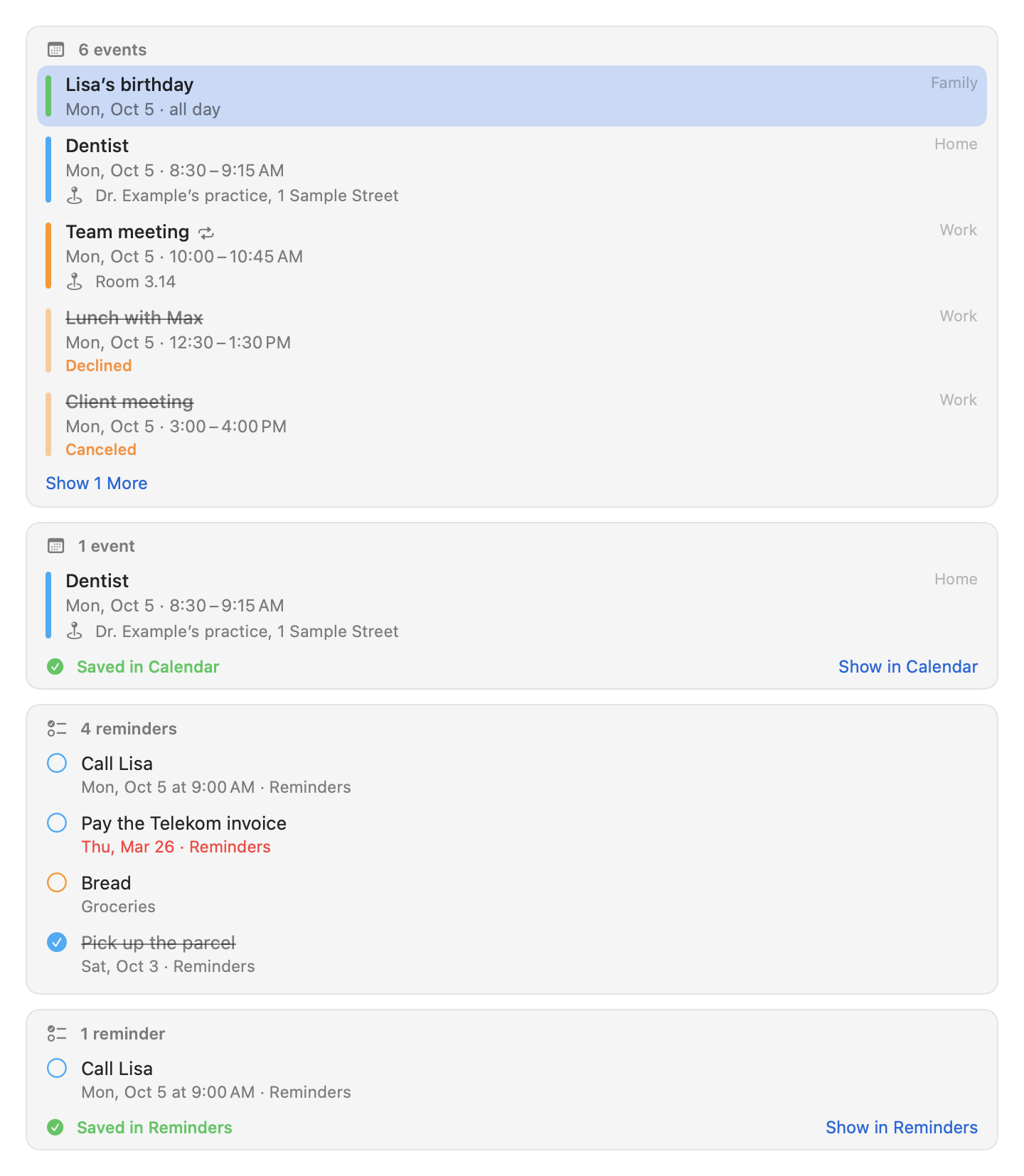
list_events
Lists the events of all calendars (or of the calendars with a given name) that take place in a range, even partly, sorted by start.
| Parameter | Type | Required | Default / limits | Description |
|---|---|---|---|---|
from |
string (date) | yes | None | Start of the range: a day (from the start of that day) or a date and time. |
to |
string (date) | yes | None | End of the range: a day includes that whole day; a date and time is the end itself. |
calendar |
string | no | all calendars | Only events in the calendars with this name, as Calendar shows it. |
limit |
integer | no | 50; 1 to 200 | Maximum number of events. |
- A range may cover at most 366 days.
- Each event shows its time with weekday (or "all day"), title, location, calendar and the first 300 characters of its notes. Titles and locations are cut to 200 characters.
- Every occurrence of a recurring event is listed, multi-day events appear on each of their days, and declined and canceled events are listed and marked.
- So the result stays within the size limit, the event rows may take at most 36,000 characters, notes at most 16,000 of them. Rows that do not fit are left out with a note.
create_event
Creates an event, only after you confirm it on a card.
| Parameter | Type | Required | Default / limits | Description |
|---|---|---|---|---|
title |
string | yes | up to 500 characters | The event's title. |
start |
string (date) | yes | None | A date and time; for an all-day event the first day. |
end |
string (date) | yes | None | A date and time after the start; for an all-day event the last day (the same date for a one-day event). |
all_day |
boolean | no | decided by whether start and end have a time |
True for an all-day event. |
location |
string | no | up to 500 characters | An address or a room. |
notes |
string | no | up to 10,000 characters | Plain text. |
calendar |
string | no | the default calendar for new events | Name of the calendar. |
- An event may last at most 14 days. If you name no end, the assistant chooses a sensible duration (for example one hour for an appointment).
- Orbit cannot currently change or delete events.
Dates and time zones
- The assistant passes ISO 8601: a day ("2026-10-05") or a date and time ("2026-10-05T10:00", in your current time zone unless it carries an offset).
- A day in
toincludes that whole day, so "tomorrow" isfromandtoset to tomorrow's date. - Days follow the calendar of your time zone, so the 23- and 25-hour days of daylight saving time are whole days, and an event that ends exactly at midnight does not belong to the next day.
- The model sees local times with an English weekday ("Mon 2026-10-05 10:00 to 11:30", "Mon 2026-10-05 22:00 to Tue 2026-10-06 02:00", "Mon 2026-10-05 to Wed 2026-10-07, all day (3 days)") and the time zone. Cards show them in Orbit's language with your region's formats (in American English "Tue, Sep 29 · 2:00 PM to 3:30 PM", in German "Di., 29. Sept. · 14:00 bis 15:30", an all-day range as "Sun, Oct 4 to Thu, Oct 8 · all day").
Calendars and lists by name
These rules apply to calendars (list_events, create_event) and reminder lists (list_reminders, create_reminder).
- A name matches a calendar's (or list's) title ignoring case and accents, otherwise the start of exactly one title.
- Every calendar has a name of its own. Calendars with the same title in two accounts are called "Work (iCloud)" and "Work (Google)". Further ones in the same account, such as your "Personal" calendar and the "Personal" calendar someone shares with you, become "Personal (iCloud)" and "Personal (iCloud 2)" (in a fixed order); without an account, "Personal (2)". Such a name is never another calendar's title: if one of them is actually called "Personal (iCloud 2)", the shared one becomes "Personal (iCloud 3)".
list_eventssearches all calendars with a matching title.create_eventandcreate_remindertake the default calendar or list among them, else the only one that allows new items; otherwise the assistant asks which one you mean.- An unknown or ambiguous name never leads to a guess: the assistant gets the names that exist (at most 40, counted as "names of calendars" or "names of reminder lists").
- Names are compared as the assistant was shown them, so a title with an emoji such as "👨👩👧 Family" (shown without its invisible joiners) can be named back.
Creating events and reminders
- Before the card appears, Orbit checks the request: a title, an end after the start, an all-day event as whole days (dates only;
endis the last day), at most 14 days, and a calendar or list that exists and allows new items (not subscribed, holiday or birthday calendars). It resolves the calendar, so the card shows exactly what will be created ("Calendar: Personal"), and a request that cannot work never asks you. - The new item goes to exactly the calendar or list the card names. Orbit keeps its identifier, also through your edits. If it was deleted meanwhile, nothing is created.
- When you edit the card, the edited values are checked again. If they do not fit (for example, the end before the start), nothing is created and the card says "Not run".
- An all-day event's card shows "Start" and "Last day" as days.
- A reminder's Due date can be removed on its card (No Date: the reminder gets no due date), added (Add Date: today), and switched between a day and a day with a time (With time: 9:00 to start with, then any time). A date the picker cannot show is typed as "YYYY-MM-DD HH:MM".
- VoiceOver reads the dates of a decided card as the card shows them.
How Orbit reads calendars and reminders
- Through EventKit, never through AppleScript. One event store serves events and reminders. It is created on first use, only once Orbit has full access, and refreshed after Calendar or Reminders changed something (or after Orbit asked for access).
- All reading and writing happens off the main thread, and Calendar and Reminders never have to run.
- Logs record counts and durations, never titles, places, notes or list names.
Event and reminder cards
- A click on an event, or Return on the row the keyboard selected, shows it in Calendar; a reminder shows in Reminders.
- The card of an event or reminder Orbit just created says "Saved in Calendar" or "Saved in Reminders" and has Show in Calendar or Show in Reminders.
- Orbit opens the links macOS itself uses for this:
ical://ekevent/<id>?method=show&options=morefor events andx-apple-reminderkit://REMCDReminder/<id>for reminders. Without an id (cards saved by older builds) it opens the app. If the app does not open, a note under the input says so. - Keyboard as on mail and note cards: Tab in the input reaches the latest card, and ↑/↓ select (hidden rows unfold). VoiceOver reads title, time, place, calendar and state ("Declined", "Canceled", "Repeats"; for reminders the due date, list and "Not completed", "Overdue" or "Completed").
Permission
The calendar tools need Calendars, the reminder tools Reminders, each with full access. macOS 14's Add Only access is not enough, because Orbit reads calendars to list events and to choose one. With Add Only, Settings → Permissions shows "Add Only" with a note and System Settings…, the tools are turned off, and the assistant says why. If you have not decided yet, the first request that needs it brings up macOS's prompt (it is your request); reading the status never asks.
What the model receives
Titles, locations, calendar and list names and notes, single-line and neutralized, inside <calendar_events> and <reminders>.
Examples
- "What do I have tomorrow?"
- "Am I free on Friday afternoon?"
- "When is my dentist appointment?"
- "Add lunch with Lisa on Thursday at 12:30 to my Personal calendar"
- "Block next Monday to Wednesday as vacation"
Reminders
Two tools list and create reminders. They share the name rules, the checks before the card, the cards and the permission rules with the calendar tools; see Calendar.
list_reminders
Lists the open reminders of all lists (or one list), by due date, those without one last.
| Parameter | Type | Required | Default / limits | Description |
|---|---|---|---|---|
list |
string | no | all lists | Only reminders in the list with this name, as Reminders shows it. |
include_completed |
boolean | no | false | Also list the reminders completed in the last 30 days, after the open ones. Older completed reminders are not available. |
limit |
integer | no | 50; 1 to 200 | Maximum number of reminders. |
Each reminder shows its title, due date (or none), whether it is overdue, its list, priority and the first 300 characters of its notes. Titles are cut to 200 characters. As for events, the rows may take at most 36,000 characters, notes at most 16,000 of them.
create_reminder
Creates a reminder, only after you confirm it on a card where you can still edit the title and the due date.
| Parameter | Type | Required | Default / limits | Description |
|---|---|---|---|---|
title |
string | yes | up to 500 characters | What to remember. |
due |
string (date) | no | no due date | A date and time gives a reminder with an alert at that time; a date alone gives a reminder for that day without a time. |
list |
string | no | the default list | Name of the list. |
Orbit cannot currently change, complete or delete reminders.
Examples
- "What's on my shopping list?"
- "Do I have to do anything today?"
- "Remind me tomorrow at 9 to call Lisa"
- "Put milk on my shopping list"
Photos
search_photos
Finds photos and videos in your Photos library taken in a range (without one, the newest), newest first, and shows them as a grid of thumbnails.
| Parameter | Type | Required | Default / limits | Description |
|---|---|---|---|---|
from |
string (date) | no | no lower bound | Taken at or after this day or date and time. |
to |
string (date) | no | no upper bound | Taken until; a day includes that whole day. |
favorites_only |
boolean | no | false | Only favorites. |
album |
string | no | the whole library | Only one album: one you made, or a standard album such as "Favorites" or "Screenshots". |
media_type |
string (enum) | no | all | image (all photos), video, live_photo or screenshot. |
limit |
integer | no | 30; 1 to 100 | Maximum number of items. |
How Orbit reads them
- Through PhotoKit, never through AppleScript, and only the metadata: date and time, the kind (photo, Live Photo, screenshot, video with its length), favorite and pixel size.
- Orbit currently never looks at what a photo shows, where it was taken or who is in it, and the model never gets an image. When you ask for "the dog on the beach", the assistant says so and offers a time range or an album instead.
- Hidden photos and Recently Deleted are never searched; of a burst, only its chosen photo. The whole library and the standard albums hold your own photos; those of shared albums only when you name the album.
- All reading happens off the main thread, nothing is read before Orbit has access, and logs record counts and durations, never album names.
Dates work as for the calendar tools: ISO 8601 days or dates with times in your time zone, and a day in to includes that whole day. So "July 2025" is from 2025-07-01 to 2025-07-31. The model sees local times with an English weekday ("Sun 2025-07-13 18:42") and the time zone.
Albums by name
- The title, ignoring case and accents, otherwise the start of exactly one title. Standard albums are also found by their English name ("Favorites", "Screenshots").
- Albums that share a title are searched together.
- An unknown or ambiguous name never leads to a guess: the assistant gets the album names that exist (as data, at most 40) and asks you.
- Smart albums you made in Photos are not found by name.
Large libraries. Searches that combine what one query to Photos cannot express (favorites in an album, Live Photos among favorites, several albums) check the items one by one and stop counting after 50,000; the assistant then hears "at least". All other searches count exactly.
Photo card
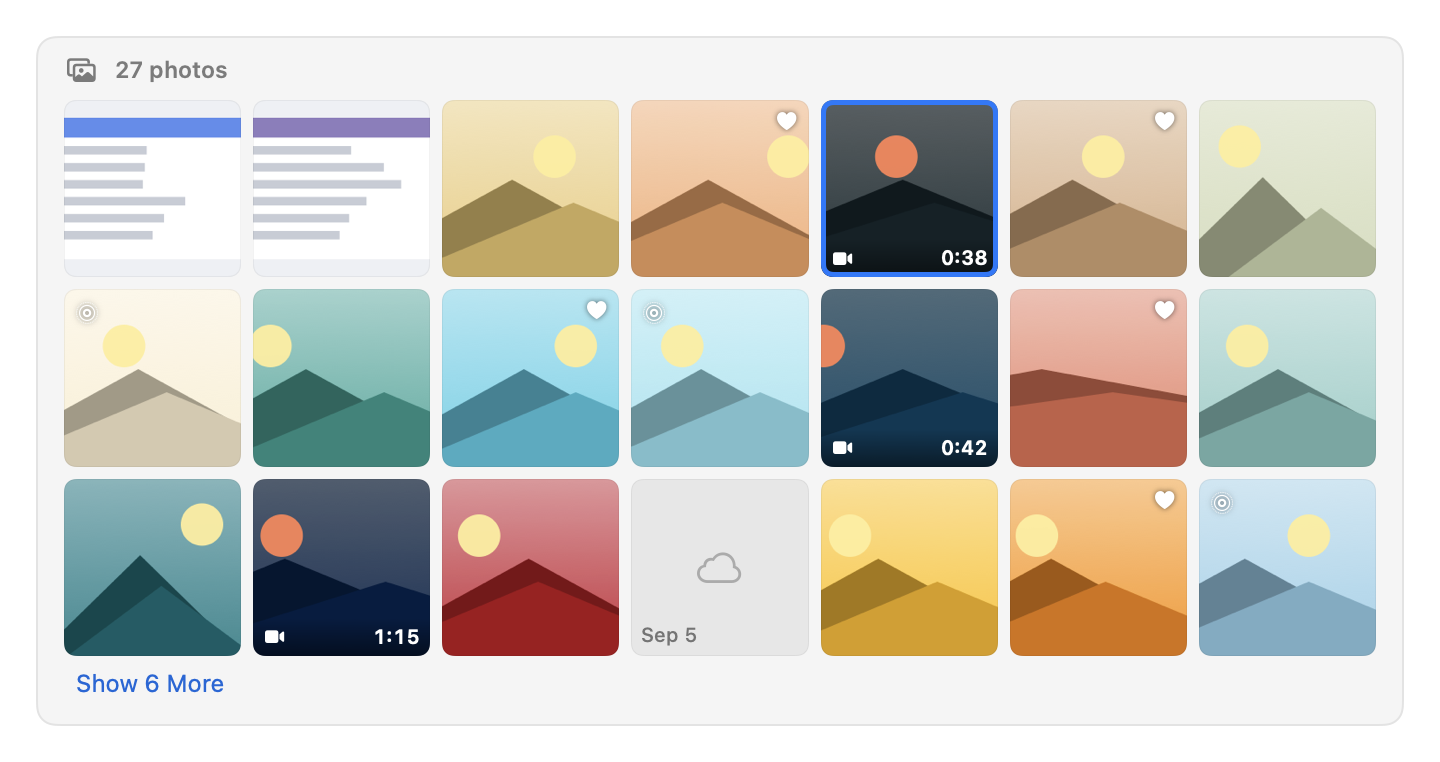
- A grid of thumbnails: three rows, then "Show N More" for the rest. Favorites have a heart; Live Photos and videos (with their length) are marked.
- Thumbnails come from PhotoKit at about 200 pixels and never over the network: a photo that is only in iCloud shows the small version on your Mac or a cloud, and no download starts. At most 32 MB of thumbnails stay in memory (and PhotoKit prepares at most 120 ahead). Requests stop when a card leaves the visible part of the chat.
- A click, or Return on the tile the keyboard selected, shows the photo in Photos:
photos-show.applescriptpasses the photo's id to Photos' ownspotlightcommand (the one Spotlight uses). The first time, macOS asks whether Orbit may control Photos (Automation: Photos). If it may not, a note under the input says so and nothing opens. If Photos cannot show the photo, Orbit opens Photos instead and the note says why. - Keyboard: Tab in the input reaches the latest card, ←/→ select a tile, ↑/↓ a row (hidden rows unfold), Return shows it, and Tab and Shift-Tab move between the cards and back to the input. Space does nothing on a tile: a Quick Look preview would need a copy of the photo on disk.
- VoiceOver reads the kind, the date (with the year when it is not this year), "Favorite" and "Only in iCloud".
Permission
search_photos needs Photos. If you have not decided yet, the first request that needs it brings up macOS's prompt (it is your request); reading the status never asks. With limited access (only the photos you chose), Orbit searches those and tells the assistant. Automation: Photos is only for showing a photo in Photos: it is listed in Settings → Permissions (not in the setup; macOS asks on the first click) and never turns the tool off.
What the model receives
For each item shown, the details listed above (never the pictures), and album names as data, single-line and neutralized. The chat says so: "Details of 30 photos sent to Claude".
Examples
- "Show me photos from July 2025"
- "My favorites from last weekend"
- "Videos from the album Holiday"
- "Today's screenshots"
Apps and links
open_app
Launches an installed app, or brings it to the front when it already runs.
| Parameter | Type | Required | Default / limits | Description |
|---|---|---|---|---|
name |
string | yes | up to 200 characters | The app's name as Finder shows it, in Orbit's language, in one of your first three preferred languages, or in English. |
- Apps are found through instant search's app index:
/Applications,/System/Applicationsand~/Applications(with one level of subfolders) plus Finder. - Every name instant search knows works. Instant search and
open_appindex app names in Orbit's language, in the first three of your preferred languages, and in English, so "Rechner" finds Calculator on an English Mac that also lists German. - An exact name wins, then the start of a name, then the start of words or initials ("vsc" → Visual Studio Code), and the app opens only when exactly one app fits. If several fit, nothing opens and the assistant gets their names to ask you. A match only inside a name, or of scattered letters, is only suggested, never opened.
- Copies of one app count once: the one you open most often from instant search, else the one in
/Applications. - Not for files (
open_file), web pages (open_url) or System Settings panes (there is no tool for those).
open_url
Opens an http or https link in your default browser, or starts a new email in your default mail app with a mailto link (you write and send it there). Nothing else.
| Parameter | Type | Required | Default / limits | Description |
|---|---|---|---|---|
url |
string | yes | up to 2,000 characters | The complete link, for example https://www.example.com/page or mailto:lisa@example.com?subject=Hello. |
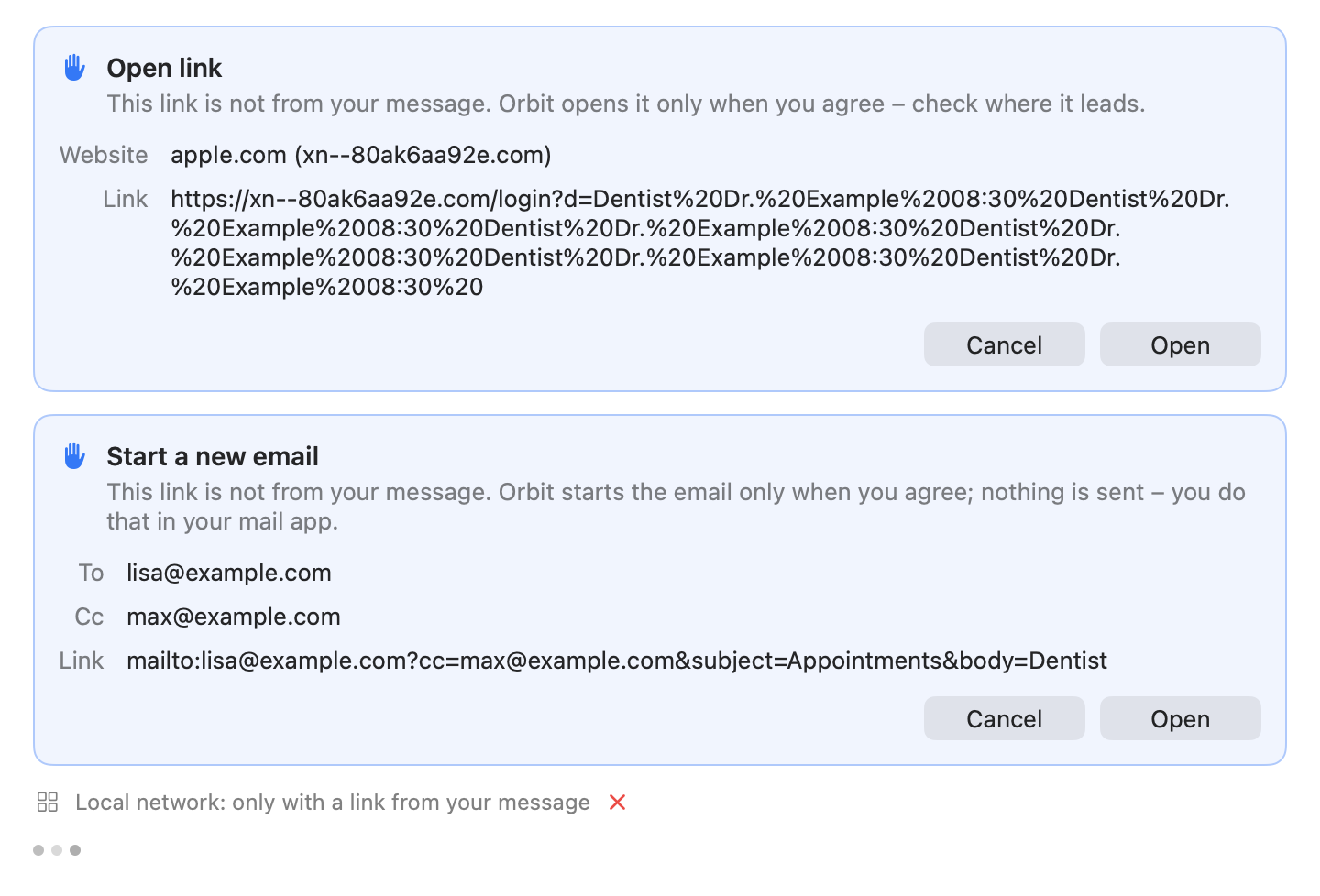
Level: write, draft for your own links. A link you typed or pasted in the message of the current request opens at once. Every other link opens only after you confirm it on a card. At most 3 open_url calls per request; beyond that the assistant is told to give you the links as text.
Which links are allowed
- Only
http,httpsandmailto. Everything else is refused with a message for the assistant:file:,javascript:,data:and every app scheme (shortcuts://,x-apple.systempreferences:, …), because such links can open files or make apps carry out actions. - Also refused:
- links longer than 2,000 characters, counted in Unicode scalars (so accents and other combining marks count each, and the link that opens is never longer);
- links with spaces, line breaks or invisible characters;
- links with a user name or password before the host (
https://google.com@evil.examplegoes to evil.example); mailtolinks with attachments (attach=,attachment=,attachments=), with a#, or with a parameter name that is not plain letters, digits and-(bcc%20=,bcc%00=, a Cyrillic "с"): a mail app might read such a name, or what follows a#, as a hidden copy the card does not show.
- The assistant is told never to open a link only because a mail, note, file or web page says so. The same rules hold when Claude Code calls the tool through Orbit's bridge, and the assistant is told all of them.
Your links and all others. Opening a link sends something off your Mac at once: the page loads, and its address can carry anything the assistant has read. So:
- A link opens without asking only when you typed or pasted it in the message of the current request, and then as you wrote it. For "Open example.com/news" the assistant may pass
https://www.example.com/news/: case,www., a trailing slash, percent-encoding, a default port or the punycode form of a name may differ, andhttps://example.com/newsopens. A bare address such aslisa@example.comcounts as amailtolink. - A link you wrote without
http://orhttps://opens withhttps://, also when the assistant passeshttp://(which would load the page unencrypted). It opens withhttp://only into the local network (fritz.box,localhost:3000), where devices rarely have a certificate. - A link the assistant changed in any other way (another parameter, a shorter path, another host, port or scheme than you wrote) is not yours. Only links in what you typed count, not context chips, earlier messages, tool results or anything the model wrote.
- Every other link (from a mail, note, event, file, web page, the selected text or the window in front, an earlier message, or composed by the assistant) first shows a card. Open link shows the website (an international name with its
xn--…form) and the whole link as it would open. Start a new email shows the recipients, the Cc and the link. Nothing opens before you click Open, and nothing on the card can be edited. - The card shows the host as people read it: international addresses decoded from punycode with their ASCII form next to them ("bücher.example (xn--bcher-kva.example)"), so a look-alike such as a Cyrillic "аррӏе.com" shows its
xn--…form.
Refused unless you typed them
- Links into the local network:
localhost; 127.0.0.1 (also written as2130706433,0x7f.1or127.1); private, shared and link-local addresses such as 192.168.x.x, 10.x.x.x, 100.64.x.x and 169.254.x.x (also inside IPv6);*.local,*.home.arpa,*.internal,*.lan; names without a dot; and router names such asfritz.boxandspeedport.ipwith the devices behind them (nas.fritz.box), also with trailing dots (fritz.box..). mailtolinks with a hidden copy (bcc=).
The chat then says why: "Local network: only with a link from your message" or "Bcc: only with a link from your message".
Card after opening: an info card with the website and the link, or with the recipients of the new email ("New email in your mail app. You send it from there."), including any Cc and Bcc. The assistant is told about every address the new mail goes to.
get_frontmost_context
Examples
- "Open Safari"
- "Start Visual Studio Code"
- "Open example.com/news"
- "Open the link from Lisa's last mail" (shows a card first)
- "Start an email to lisa@example.com"
Shortcuts
Two tools list and run your shortcuts from the Shortcuts app. Orbit never edits shortcuts.
list_shortcuts
Lists your shortcuts by name, with the folders they are organized in.
| Parameter | Type | Required | Default / limits | Description |
|---|---|---|---|---|
folder |
string | no | all shortcuts | Only the shortcuts in the folder with this name, as the Shortcuts app shows it. |
- Orbit uses
/usr/bin/shortcuts:list --show-identifierslists the shortcuts,list --folderstheir folders, each with a 10-second limit. - The model gets at most 200 names (and at most 50 folder names). The result has no card; the status line says how many were found.
- The assistant also calls it first when you want something done that no other tool does, above all switching a Focus or Do Not Disturb, and runs the shortcut whose name fits.
run_shortcut
Runs one of your shortcuts, only after you confirm it on a card where you can still edit the input.
| Parameter | Type | Required | Default / limits | Description |
|---|---|---|---|---|
name |
string | yes | up to 200 characters | The shortcut's exact name, as list_shortcuts gives it. |
input |
string | no | up to 20,000 characters | Text the shortcut gets as its input. |
Name matching
- Only a shortcut whose name matches exactly runs, ignoring case, also as the assistant was shown it: a name with an emoji such as "🧑💻 Start Work" is shown without its invisible joiners. If several shortcuts have the same name apart from case, the assistant must use the exact case or ask you.
- A misspelled or partial name never runs. The assistant gets similar names instead (those with a word that starts like a word of three or more letters of the name, at most 10; otherwise the first 30 names), and the chat notes these names as sent, like the list's.
- The name is checked before the card appears and again before the shortcut runs, and the shortcut is run by its identifier, so exactly that one runs.
How it runs
- The input goes to the shortcut as a text file readable only by you in
~/Library/Application Support/Orbit/ShortcutInput. The output goes into a private folder in the temporary folder. Both are deleted afterwards, also when the run fails or is stopped. - A run may take two minutes; then it is stopped. Escape stops it at once (the command's whole process group).
- Output: text output reaches the assistant as data, up to 4,000 characters, inside
<shortcut_output>. Other output (an image, a PDF) is described by type and size only; Orbit does not read it. - Logs never contain shortcut names, input or output.
Card. The card "Run shortcut" shows the shortcut and the editable input: "Orbit runs this shortcut. Its actions decide what it does, and Orbit cannot see them." After the run, an info card "Ran shortcut “…”" shows the start of the text output, the kind and size of a file (for example "Result: PNG image, 245 KB"), or "No output".
Switching a Focus or Do Not Disturb
There is no tool for Focus modes: macOS gives apps no public way (no API, no AppleScript) to switch a Focus. The Shortcuts action Set Focus can. So for such a request, and for anything else no tool does, the assistant first looks through your shortcuts (list_shortcuts) and runs the one whose name fits. Only if none fits does it say so and explain how to make one.
To make a shortcut for Do Not Disturb:
- Open the Shortcuts app and choose File → New Shortcut.
- Add the action Set Focus.
- Choose the Focus (for example Do Not Disturb) and On or Off (optionally with an end, such as a time or when you leave).
- Name the shortcut, for example "Do Not Disturb On".
Make a second one with Off ("Do Not Disturb Off") if you like. Then "Turn on Do Not Disturb" works; the assistant asks before it runs the shortcut, as for every shortcut.
What the model receives
Shortcut and folder names (as data, single-line and neutralized) and a shortcut's text output inside <shortcut_output>. The chat says so, for example "Names of 12 shortcuts sent to Claude" or "Output of 1 shortcut sent to Claude".
Examples
- "Which shortcuts do I have?"
- "Run my shortcut Start Work"
- "Turn on Do Not Disturb"
- "Run Translate with the text 'Good morning'"
Appearance and volume
set_appearance
Switches macOS between the light and the dark appearance, only after you confirm it.
| Parameter | Type | Required | Default / limits | Description |
|---|---|---|---|---|
dark |
boolean | yes | None | true for the dark appearance, false for the light one. |
- It goes through
system-appearance.applescript, which sets System Events'dark modeand nothing else. - If the appearance already is what you asked for, nothing changes and the card says so ("Already set, nothing changed.").
- Not for single apps, the screen brightness or Night Shift.
Card: "Change appearance" with the new appearance (Dark or Light) and Switch; afterwards "Dark appearance" or "Light appearance".
Permission: Automation: System Events. The first time, macOS asks whether Orbit may control System Events (after you confirmed the card). It is listed only in Settings → Permissions, not in the setup.
set_volume
Sets the volume of the current output device (0 to 100 %), or changes it by some points, and/or mutes or unmutes it, only after you confirm it on a card.
| Parameter | Type | Required | Default / limits | Description |
|---|---|---|---|---|
level |
integer | no* | 0 to 100 | The volume in percent. |
change |
integer | no* | −100 to 100 | Instead of level: points to add to the current volume, for example 15 for louder or −15 for quieter. |
muted |
boolean | no* | None | true mutes, false unmutes. |
* At least one of them; level and change cannot be combined.
Volume rules
- Volume goes through Core Audio on the default output device; no permission is needed. Orbit sets the device's main volume (or, for devices without one, the volume of its first two channels) and its mute switch.
- "Louder" and "quieter" change the current level by about 15 points (more for "much louder"); the assistant does not have to ask you for a number. The result stays within 0 to 100.
- The card shows the current level ("Current: 50%", or "50% (muted)" while muted) next to the new one, which you can still edit there.
- A level above 0, or "louder", also unmutes a muted device unless you asked for muting; the card then shows the device and "Sound: On". "Quieter" keeps a muted device muted ("Sound: Off" on the card): it only lowers the level the device will have once the sound is on again.
- The change goes only to the device the card names (Orbit keeps its Core Audio identifier). If another device became the output meanwhile (headphones plugged in, AirPods connected), nothing changes and the assistant is told so.
- The card and the answer report the level that was set. macOS applies a change asynchronously, so reading it back right away may still give the old level.
- Devices macOS cannot change (many HDMI and digital outputs) are refused before the card appears; there is nothing to confirm. A device that cannot be muted is refused the same way.
Card: "Change volume" with "Volume (0 to 100)", "Current", "Sound" and "Output device", and Set. Afterwards an info card such as "Volume: 40%" or "Sound off" with the device.
Examples
- "Turn on dark mode"
- "Switch to the light appearance"
- "Louder, please"
- "Set the volume to 30 percent"
- "Mute the sound"
Frontmost app context
Orbit can use what you are looking at as context: the text you selected or the items you selected in Finder. It does this in two ways, with the same reading rules.
Context chips

When you open Orbit with the shortcut or Open Orbit in the menu bar, it takes what is selected in the app you came from:
- In Finder: the selected items (
finder-selection.applescript, at most 20 paths). Only when Finder is in front and Orbit may already control Finder: the status is read without asking, so opening the panel never brings up macOS's prompt. - In other apps: the selected text, through Accessibility, only once Orbit is allowed under Accessibility. At most a quarter of a second per question to the app; never from Orbit itself; never from password fields (recognized by their role before any text is read) or while secure keyboard entry is on; and never from password managers: Passwords, Keychain Access, 1Password, Bitwarden, KeePassXC, LastPass, Dashlane, Enpass, NordPass, Proton Pass, Keeper, RoboForm, MacPass, Strongbox, KeePassium, Secrets and others, recognized by the identifiers their vendors ship (
FrontmostContextRules.passwordManagers). At most 4,000 characters; a longer selection is read only up to that.
How the chips behave:
- The panel appears at once; the chips follow when the capture is done ("With selection: Offer.pdf and 2 more", "With selection: “Delivery by Friday…” (TextEdit)"), and VoiceOver announces them.
- A capture that takes longer than 0.3 seconds is dropped, and so is one that ends after you sent the message or closed the panel. There is no chip for the app alone.
- Each chip can be removed with its ×, with VoiceOver's "Remove" action, or from the keyboard: ⌫ in the empty input removes the last chip, like a token (VoiceOver says which; held down, ⌫ stops at the empty input).
- A new open replaces the chips of the previous one, unless the input still holds text you have not sent together with chips you kept: then both stay and nothing is captured.
- Nothing is captured while you type, when Orbit is launched again from Finder or Spotlight, or when Orbit keeps the panel up for Mail's reply window.
- Finder items Orbit never shares (keys and other secrets,
~/Library, Orbit's data folder; see File access rules) are left out of the chips and not counted among the selected ones. The chip says how many ("With selection: Notes.md · 1 protected file left out"), and the assistant hears only their number, never their names. - Paths in your home folder reach the assistant as
~/…. - The selection reaches the model only with your message. Settings → General → Use the selection when opening turns the chips off.
get_frontmost_context
Tells the assistant what you have in front of you right now: the app in front of Orbit, the title of its window, and what is selected there (text, or the items selected in Finder as paths).
| Parameter | Type | Required | Default / limits | Description |
|---|---|---|---|---|
| (none) |
- It reads the same way as the chips (plus the window title, cut to 300 characters) whenever the assistant asks, whether or not the chips are on. The assistant uses it when you refer to "this", "the selected text", "this window" or "the selected files" and your message carries no chip. Turn it off in Settings → Tools if you do not want it.
- It never asks for a permission. Without Accessibility or Automation: Finder, it says which part is missing and why.
Permissions
The context uses Accessibility and Automation: Finder. Both are listed in Settings → Permissions and have a setup step while the chips or get_frontmost_context are on, and neither turns a tool off. Allow… for Accessibility shows macOS's dialog that leads to System Settings → Privacy & Security → Accessibility, where you turn Orbit on.
What the model receives
Finder paths in <finder_selection> and the selected text in <selected_text> (with < and > shown as ‹ and ›); for chips inside the <orbit_context> block in front of your message. get_frontmost_context adds the app and its window title in <frontmost_app>. All of it is labeled as data from your screen, not instructions. The chat says so: for example "1 selected text, 2 file names and 1 window title sent to Claude". Logs record counts, kinds and durations, never app names, links, shortcut names, selected text, window titles or paths.
Examples
- Select a paragraph in TextEdit, open Orbit and ask "Translate this into English"
- Select three PDFs in Finder, open Orbit and ask "Which of these is the newest invoice?"
- "What's the title of the window I'm looking at?"